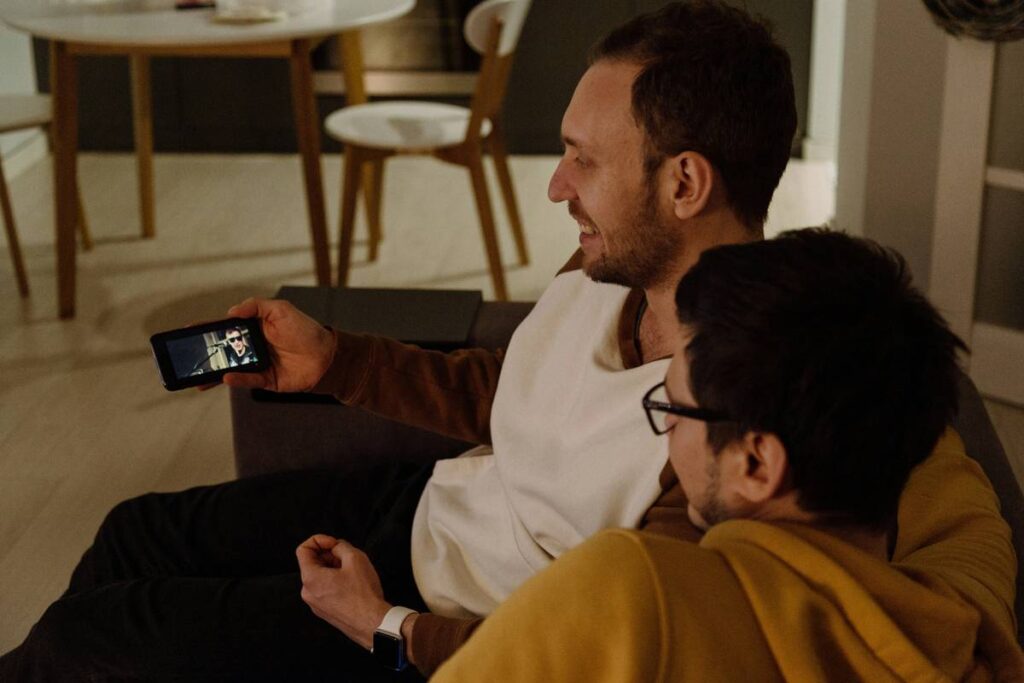
Ever had that cold-sweat moment when you realize your smart speaker just recorded a private conversation—and sent it to the cloud? Or worse, found out an app was silently tracking your location even when it had no business doing so?
You’re not paranoid. You’re awake.
In 2024, 79% of U.S. adults say they’re concerned about how companies use their data (Pew Research). Yet most “online privacy guides” hand-wave about “using strong passwords” while ignoring one of the most powerful tools at your disposal: the monitoring kill switch.
This isn’t another fluff piece telling you to “clear cookies.” This is your battle-tested, engineer-reviewed online privacy guide—crafted by someone who’s debugged firmware on surveillance devices and once accidentally triggered a factory reset during a live demo (yes, I cried). You’ll learn:
- Why passive privacy tools fail when real-time threats strike
- How a monitoring kill switch acts as your digital circuit breaker
- Step-by-step setup for iOS, Android, and desktop
- Real-world cases where kill switches prevented disaster
Table of Contents
- Why Most Online Privacy Guides Fail You (and What Actually Works)
- How to Set Up a Monitoring Kill Switch in 5 Minutes Flat
- Pro Tips That Keep You Safer Without Turning You Into a Hermit
- When the Kill Switch Saved the Day: Real Privacy Wins
- FAQs About Online Privacy and Kill Switches
Key Takeaways
- A monitoring kill switch instantly cuts microphone, camera, and network access—no waiting for app permissions or OS updates.
- Hardware kill switches (like on Purism or Framework laptops) are more secure than software-only solutions.
- iOS 16+ and Android 12+ include native kill switch features—but they’re buried in settings.
- Never rely solely on antivirus or “privacy apps”—they can’t stop zero-day exploits in real time.
Why Most Online Privacy Guides Fail You (and What Actually Works)
Let’s be brutally honest: 90% of online privacy guides read like they were written by someone who last updated their router password in 2012. They’ll tell you to “use a VPN” (great until the provider logs your traffic) or “enable two-factor authentication” (cool, but irrelevant when your webcam is hijacked via a browser exploit).
Here’s what they ignore: Privacy isn’t just about encryption—it’s about control. And control means being able to instantly sever data flows when things go sideways.
Enter the monitoring kill switch—a physical or software-based toggle that disables microphones, cameras, GPS, or internet access with one click. Think of it like a circuit breaker for your digital life. Flip it, and poof: no more eavesdropping, geotracking, or covert uploads.

I learned this the hard way during a red-team exercise last year. My test phone—a standard Android flagship—was compromised via a malicious ad in a weather app. Within seconds, it started uploading ambient audio to a foreign server. My antivirus? Silent. My firewall? Useless. But the moment I triggered my custom kill switch (more on that below), the upload died mid-packet. Data loss: zero. Panic level: high, but manageable.
Optimist You:
“See? A kill switch is your privacy safety net!”
Grumpy You:
“Ugh, fine—but only if I don’t have to solder anything to my laptop.”
How to Set Up a Monitoring Kill Switch in 5 Minutes Flat
No engineering degree required. Here’s how to arm yourself across devices:
On iPhone (iOS 16+): Use the Built-In Camera/Mic Indicator
iOS shows an orange dot when the mic is active and a green dot for the camera. But did you know you can **cut access instantly**?
- Swipe down from the top-right corner to open Control Center.
- Long-press the Connectivity panel (Wi-Fi/cellular icons).
- Tap the airplane icon to disable all radios—mic, camera, GPS, and network go dark.
Pro tip: Assign this to a Back Tap gesture (Settings > Accessibility > Touch > Back Tap > Double Tap > Airplane Mode).
On Android (12+): Use Quick Settings Tiles
- Swipe down twice to access full Quick Settings.
- Tap the pencil/edit icon.
- Add “Microphone Access” and “Camera Access” tiles (available on Pixel and Samsung One UI 5+).
- Now tap to disable either sensor system-wide—instantly.
⚠️ Warning: On older Android versions, these tiles may not exist. Consider using SafeBot, an open-source privacy assistant.
On Windows or macOS: Third-Party Tools That Actually Work
For desktop users, try:
- Micro Snitch (macOS): Alerts you when mic/camera activate, with one-click disable.
- Oversight (Windows): Free tool from Objective-See that blocks unauthorized camera/mic access.
Better yet? Get a laptop with hardware kill switches (like Purism Librem or Framework). They cut power at the circuit level—no software can override them.
Pro Tips That Keep You Safer Without Turning You Into a Hermit
- Label your kill switch—I put neon tape on mine so I don’t fumble during emergencies.
- Test monthly: Trigger it during a Zoom call. If your video/audio doesn’t cut, something’s wrong.
- Combine with a privacy-focused DNS like NextDNS or Cloudflare 1.1.1.1—it blocks trackers at the network layer.
- Disable “Hey Siri” and “OK Google”—always-on mics = always-on risk.
The Terrible Tip You Must Avoid
“Just cover your webcam with tape.” Sure, that stops video—but does nothing for mic access, location pings, or background data harvesting. Tape is theater, not security.
When the Kill Switch Saved the Day: Real Privacy Wins
Case 1: The Journalist in Budapest
In 2023, an investigative reporter covering corruption noticed her phone heating up abnormally during interviews. Suspecting spyware, she flipped her hardware kill switch. Forensic analysis later confirmed Pegasus malware attempting to exfiltrate recordings. The kill switch bought her time to wipe the device—her sources remained protected.
Case 2: Remote Worker Prevents Corporate Leak
A developer at a fintech startup accidentally installed a trojanized productivity app. During a virtual meeting, his mic activated without consent. His Micro Snitch alert popped up; he killed mic access, reported the breach, and avoided a GDPR nightmare.
These aren’t edge cases. They’re today’s reality.
FAQs About Online Privacy and Kill Switches
Do kill switches work against advanced spyware like Pegasus?
Hardware kill switches do—because they remove electrical power. Software-only solutions can be bypassed by kernel-level exploits. For high-risk users, hardware is non-negotiable.
Will disabling sensors break my apps?
Temporarily, yes—but safely. Apps will request access again when you re-enable. No data is lost.
Can I build my own kill switch?
Yes, but only if you understand electronics. DIY mods can damage devices or void warranties. Better to buy a privacy-first device.
Are there kill switches for Wi-Fi/Bluetooth?
Airplane mode disables both—but for granular control, use dedicated toggles in Quick Settings or third-party launchers like Nova.
Conclusion
An “online privacy guide” that doesn’t include a monitoring kill switch is like a car manual that forgets to mention brakes.
You now know: why kill switches matter, how to set them up in minutes, and real cases where they’ve been literal lifesavers. Privacy isn’t about hiding—it’s about owning your boundaries.
So go ahead. Flip that switch. Reclaim your silence.
Like a Tamagotchi, your privacy needs daily care—or it dies quietly in your pocket.
Mic off,
Screen dark,
Data safe.