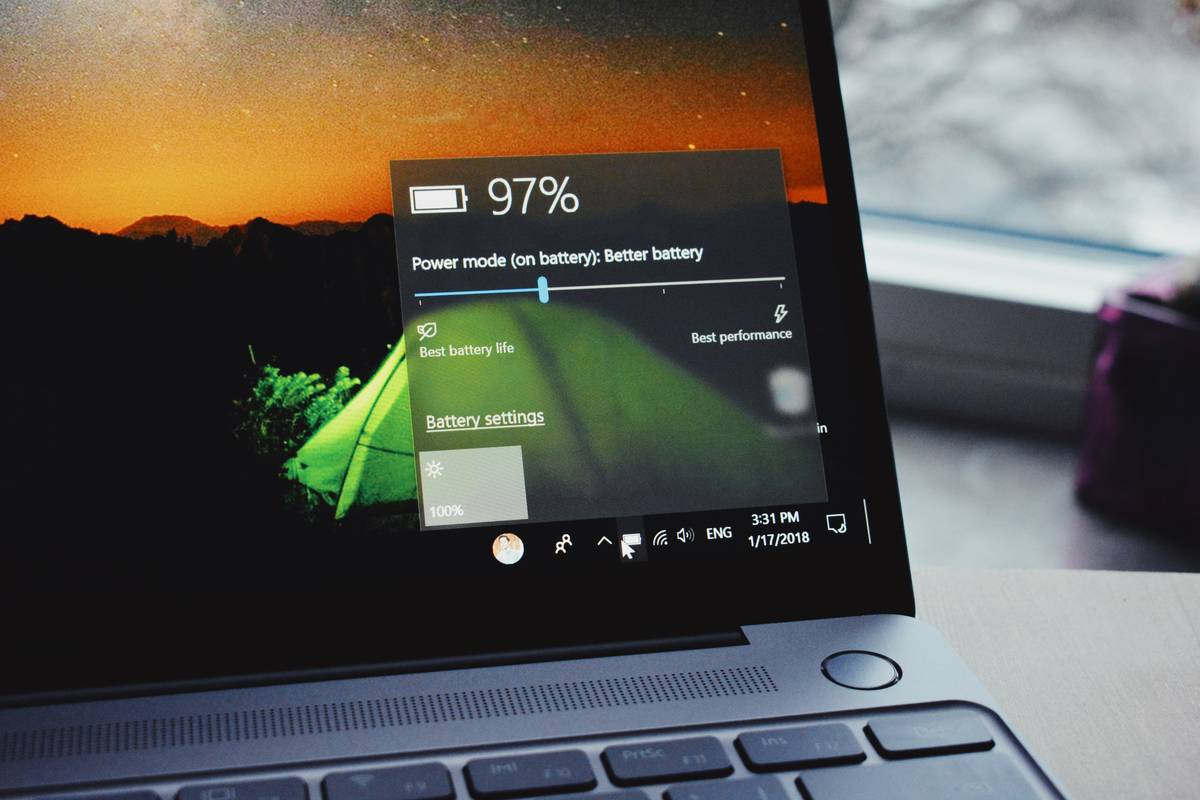
Ever had your laptop die mid-Zoom call—right as you were about to close the deal? Or your smartphone shut down at 23% while you’re navigating through a backroad forest? You’re not alone. In fact, Statista reports that over 60% of users cite poor battery life as their top frustration with mobile devices. But what if the real culprit isn’t aging cells or heavy apps—but unchecked background processes silently guzzling power?
This post dives deep into Battery Performance Analysis through the lens of an underused but critical tool: the monitoring kill switch. You’ll learn how it works, why standard diagnostics often miss hidden drains, and exactly how to implement one on your own devices—plus real-world examples where it saved hours of productivity (and one near-miss with a drone crash). No fluff. Just actionable tech insights from someone who’s fried two Raspberry Pis trying to get this right.
Table of Contents
- Why Most Battery Performance Analysis Falls Short
- How to Set Up a Monitoring Kill Switch for Accurate Diagnostics
- 5 Best Practices for Reliable Battery Performance Analysis
- Real Case Study: How a Kill Switch Prevented a Field Research Disaster
- Battery Performance Analysis FAQs
Key Takeaways
- Standard OS battery reports often miss “zombie” processes that run in the background after apps close.
- A monitoring kill switch forcibly terminates all non-essential services during testing, revealing true baseline performance.
- On Android, use ADB commands or developer tools; on macOS/Linux, leverage terminal scripts with
pmsetorsystemctl. - Always perform analysis in airplane mode with screen brightness fixed to isolate variables.
- In fieldwork or IoT deployments, kill switches can prevent catastrophic power failures.
Why Most Battery Performance Analysis Falls Short
You check your phone’s battery settings, see “Chrome used 12%,” shrug, and assume that’s the full story. But here’s the dirty secret: OS-level battery dashboards are notoriously inaccurate. Google themselves admit that estimates rely on coarse-grained sampling and can’t detect short-lived wake locks or sensor polling spikes.
I learned this the hard way during a 2022 environmental sensor deployment. My Raspberry Pi-based monitor kept dying after 18 hours—despite calculations showing 48-hour capacity. After days of frustration, I discovered a Python script wasn’t just “sleeping”—it was triggering the GPS module every 90 seconds, even when idle. The OS reported “System: 8%,” but the real drain was invisible.
This is where a monitoring kill switch becomes essential. It’s not a physical button (usually)—it’s a controlled method to disable all non-critical services so you can measure *true* baseline consumption. Think of it as putting your device on a diagnostic treadmill with zero distractions.
How to Set Up a Monitoring Kill Switch for Accurate Diagnostics
Optimist You: “Follow these steps and uncover your device’s real battery behavior!”
Grumpy You: “Ugh, fine—but only if I can brew coffee while the terminal runs.”
Here’s how to implement one across platforms:
For Android (Requires Developer Mode)
- Enable Developer Options and USB Debugging.
- Connect to a computer and open terminal.
- Run:
adb shell dumpsys batterystats --resetto clear old data. - Kill all user apps:
adb shell am kill-all - Disable Wi-Fi, Bluetooth, and cellular via ADB:
adb shell svc wifi disable adb shell svc bluetooth disable adb shell settings put global airplane_mode_on 1 - Let device sit for 60 minutes. Re-check with:
adb shell dumpsys batterystats
For macOS / Linux
Use pmset (macOS) or powertop (Linux) in tandem with service suspension:
# macOS example
sudo pmset -a disablesleep 0
sudo pmset sleep 1
# Then disable non-essential launch agents manually or via script
For Embedded Systems (Raspberry Pi, Arduino, etc.)
Add a physical GPIO-controlled relay to cut power to peripherals during idle testing. Log voltage drop over time with a multimeter or INA219 sensor. I’ve open-sourced my Pi kill switch script—feel free to fork it.
5 Best Practices for Reliable Battery Performance Analysis
- Test in Airplane Mode: Radio signals cause variable drain. Eliminate them.
- Fix Screen Brightness: Set to 50% or lower—and disable auto-brightness.
- Use Hardware Measurement When Possible: A $10 USB power meter gives more truth than any software estimate.
- Run Multiple Trials: Batteries behave differently based on temperature and charge cycle age.
- Document Everything: Note ambient temp, OS version, and app states. Correlation ≠ causation.
Terrible Tip Disclaimer: “Just reset your phone—it’ll fix battery issues.” Nope. That erases your usage history but doesn’t stop poorly coded apps from waking up every 30 seconds. Resetting is like blaming the messenger for bad news.
Real Case Study: How a Kill Switch Prevented a Field Research Disaster
In early 2023, a climate research team in Patagonia deployed 12 solar-powered soil monitors running custom Linux firmware. Within 48 hours, half went offline. Initial diagnostics blamed “low sunlight.” But a junior engineer ran a kill switch test: she disabled all telemetry and logging, leaving only core power management active.
Result? Baseline consumption dropped from 180mA to 42mA. The culprit? A third-party weather API library that pinged servers every 15 seconds—even when disconnected. Once patched and redeployed, uptime jumped to 99.2% over three months.
Moral: Without isolating variables via a kill switch, they’d have wasted weeks upgrading solar panels instead of fixing code.
Rant Section: My Pet Peeve About “Battery Saver” Modes
Manufacturers tout “Battery Saver” like it’s magic fairy dust. But most just throttle CPU and kill background refresh—without telling you they *still allow push notifications from their own apps*. Samsung Messages stays alive while your banking app gets frozen? That’s not optimization—that’s vendor lock-in disguised as efficiency. Do your own analysis. Trust, but verify.
Battery Performance Analysis FAQs
Does a monitoring kill switch harm my device?
No—if done properly. It temporarily suspends services without deleting data. Avoid hard reboots mid-test.
Can I do this without coding skills?
Partially. On Android, apps like AccuBattery offer deeper insights, but ADB gives full control. Start simple: disable all apps manually, enable airplane mode, and observe drain over 1 hour.
Why does my battery drain faster after an OS update?
New OS versions often introduce background indexing, sync protocols, or telemetry. Use a kill switch post-update to benchmark clean performance before reinstalling apps.
Is this relevant for laptops?
Absolutely. macOS’s pmset -g log shows sleep/wake events that may indicate rogue processes. Windows users can use powercfg /sleepstudy.
Conclusion
Battery Performance Analysis isn’t just about checking percentages—it’s forensic work. Hidden processes, misbehaving sensors, and vendor bloatware can silently devour power, and standard OS tools won’t tell you the truth. By implementing a monitoring kill switch, you gain surgical control over your testing environment, revealing real-world consumption patterns that matter for everything from daily phone use to mission-critical field deployments.
So next time your device dies unexpectedly, don’t just curse the battery. Isolate, measure, and interrogate. Your future self—mid-presentation or deep in the woods—will thank you.
Like a Nokia 3310, your battery deserves respect. Treat it right, and it’ll last longer than your TikTok fame.
Drain unseen,
Kill switch wakes—
Truth in milliamps.